


Page 20 - Computing Book 4
P. 20
Creating a Document                                                                  Class 4


               Zoom In and Zoom Out:

               Zoom allows you to view the document closer or farther
               away.  The document can be displayed as One Page,
               Multiple Pages or Page Width (Document page displayed
               on the whole screen).

               When your document is zoomed in or out in Microsoft
               Word 2013, it will not affect the size at which the
               document prints. It will only affect the size at which it is
               displayed on your screen.

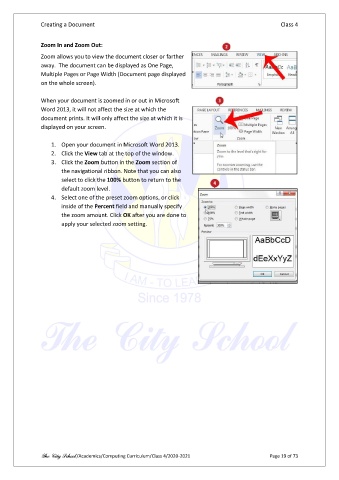
                   1.  Open your document in Microsoft Word 2013.
                   2.  Click the View tab at the top of the window.
                   3.  Click the Zoom button in the Zoom section of
                       the navigational ribbon. Note that you can also
                       select to click the 100% button to return to the
                       default zoom level.
                   4.  Select one of the preset zoom options, or click
                       inside of the Percent field and manually specify
                       the zoom amount. Click OK after you are done to
                       apply your selected zoom setting.


               The City School /Academics/Computing Curriculum/Class 4/2020-2021                Page 19 of 73

