


Page 17 - Computing Book 4
P. 17
Creating a Document                                                                  Class 4


               To Replace Text:

               At times, you may discover that you have made a mistake repeatedly throughout your document—
               such as misspelling a person's name—or that you need to exchange a particular word or phrase for
               another.
               You can use Word's Find and Replace feature to quickly make changes. In our example, we will use
               Find and Replace to change the title of a magazine so it is abbreviated.

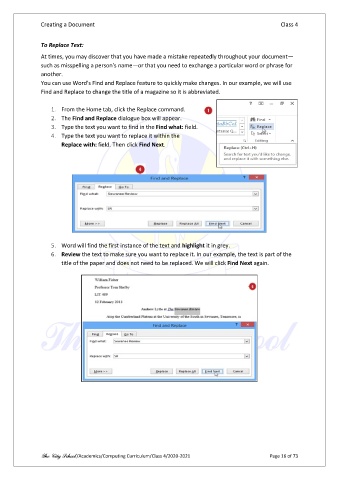
                   1.  From the Home tab, click the Replace command.
                   2.  The Find and Replace dialogue box will appear.
                   3.  Type the text you want to find in the Find what: field.
                   4.  Type the text you want to replace it within the
                       Replace with: field. Then click Find Next.


                   5.  Word will find the first instance of the text and highlight it in grey.
                   6.  Review the text to make sure you want to replace it. In our example, the text is part of the
                       title of the paper and does not need to be replaced. We will click Find Next again.


               The City School /Academics/Computing Curriculum/Class 4/2020-2021                Page 16 of 73

