


Page 25 - Computing Book 4
P. 25
Let’s Present                                                                        Class 4


               Moving and Resizing Pictures/Objects:

               Once you have inserted a picture, you may want to move it to a different location on the slide or
               change its size. PowerPoint makes it easy to arrange pictures in your presentation.


               Select a Picture:

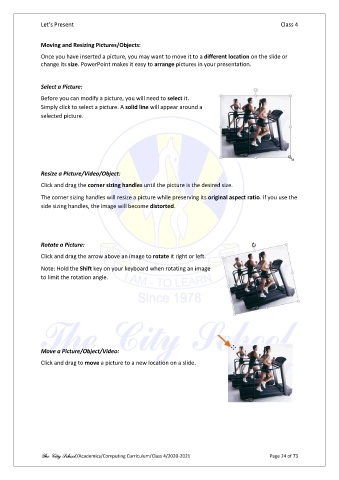
               Before you can modify a picture, you will need to select it.
               Simply click to select a picture. A solid line will appear around a
               selected picture.


               Resize a Picture/Video/Object:
               Click and drag the corner sizing handles until the picture is the desired size.

               The corner sizing handles will resize a picture while preserving its original aspect ratio. If you use the
               side sizing handles, the image will become distorted.


               Rotate a Picture:

               Click and drag the arrow above an image to rotate it right or left.
               Note: Hold the Shift key on your keyboard when rotating an image
               to limit the rotation angle.


               Move a Picture/Object/Video:

               Click and drag to move a picture to a new location on a slide.


               The City School /Academics/Computing Curriculum/Class 4/2020-2021                Page 24 of 73

