


Page 18 - Computing Book 4
P. 18
Creating a Document                                                                  Class 4


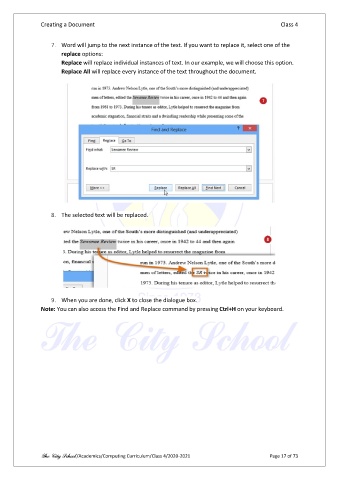
                   7.  Word will jump to the next instance of the text. If you want to replace it, select one of the
                       replace options:
                       Replace will replace individual instances of text. In our example, we will choose this option.
                       Replace All will replace every instance of the text throughout the document.


                   8.  The selected text will be replaced.


                   9.  When you are done, click X to close the dialogue box.
               Note: You can also access the Find and Replace command by pressing Ctrl+H on your keyboard.


               The City School /Academics/Computing Curriculum/Class 4/2020-2021                Page 17 of 73

