


Page 59 - Computing Book 4
P. 59
Collecting Information – MS Access                                                   Class 4


               Saving a Record:

               Access is designed to save records automatically. After you enter a record, you can either select a
               different record or close the object, and Access will save the record.

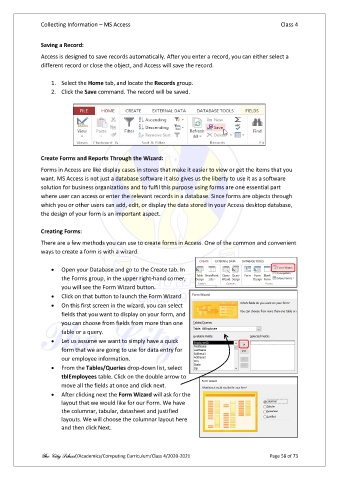
                   1.  Select the Home tab, and locate the Records group.
                   2.  Click the Save command. The record will be saved.


               Create Forms and Reports Through the Wizard:

               Forms in Access are like display cases in stores that make it easier to view or get the items that you
               want. MS Access is not just a database software it also gives us the liberty to use it as a software
               solution for business organizations and to fulfil this purpose using forms are one essential part
               where user can access or enter the relevant records in a database. Since forms are objects through
               which you or other users can add, edit, or display the data stored in your Access desktop database,
               the design of your form is an important aspect.

               Creating Forms:

               There are a few methods you can use to create forms in Access. One of the common and convenient
               ways to create a form is with a wizard.

                   •  Open your Database and go to the Create tab. In
                       the Forms group, in the upper right-hand corner,
                       you will see the Form Wizard button.
                   •  Click on that button to launch the Form Wizard
                   •  On this first screen in the wizard, you can select
                       fields that you want to display on your form, and
                       you can choose from fields from more than one
                       table or a query.
                   •  Let us assume we want to simply have a quick
                       form that we are going to use for data entry for
                       our employee information.
                   •  From the Tables/Queries drop-down list, select
                       tblEmployees table. Click on the double arrow to
                       move all the fields at once and click next.
                   •  After clicking next the Form Wizard will ask for the
                       layout that we would like for our Form. We have
                       the columnar, tabular, datasheet and justified
                       layouts. We will choose the columnar layout here
                       and then click Next.


               The City School /Academics/Computing Curriculum/Class 4/2020-2021                Page 58 of 73

