


Page 57 - Computing Book 4
P. 57
Collecting Information – MS Access                                                   Class 4


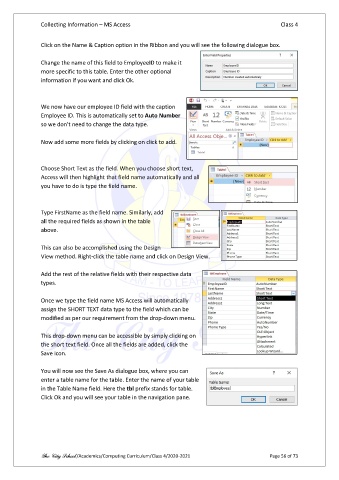
               Click on the Name & Caption option in the Ribbon and you will see the following dialogue box.

               Change the name of this field to EmployeeID to make it
               more specific to this table. Enter the other optional
               information if you want and click Ok.


               We now have our employee ID field with the caption
               Employee ID. This is automatically set to Auto Number
               so we don't need to change the data type.

               Now add some more fields by clicking on click to add.


               Choose Short Text as the field. When you choose short text,
               Access will then highlight that field name automatically and all
               you have to do is type the field name.


               Type FirstName as the field name. Similarly, add
               all the required fields as shown in the table
               above.

               This can also be accomplished using the Design
               View method. Right-click the table name and click on Design View.

               Add the rest of the relative fields with their respective data
               types.

               Once we type the field name MS Access will automatically
               assign the SHORT TEXT data type to the field which can be
               modified as per our requirement from the drop-down menu.

               This drop-down menu can be accessible by simply clicking on
               the short text field. Once all the fields are added, click the
               Save icon.

               You will now see the Save As dialogue box, where you can
               enter a table name for the table. Enter the name of your table
               in the Table Name field. Here the tbl prefix stands for table.
               Click Ok and you will see your table in the navigation pane.


               The City School /Academics/Computing Curriculum/Class 4/2020-2021                Page 56 of 73

