


Page 60 - Computing Book 4
P. 60
Collecting Information – MS Access Class 4
• On the next window, we need to give a title to our form i.e. EmployeeForm.
• Once you have given your form a title, there will be two more options below by which you
can open the form to see what that form looks like, or you can begin entering information
into your table.
• Or you can choose the option to modify the form's design.
• Choose the first option to open the form to view or enter information and click Finish.
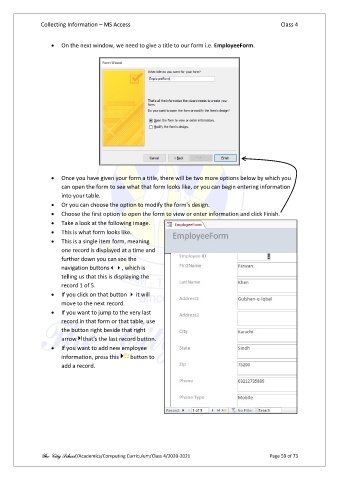
• Take a look at the following image.
• This is what form looks like.
• This is a single item form, meaning
one record is displayed at a time and
further down you can see the
navigation buttons, which is
telling us that this is displaying the
record 1 of 5.
• If you click on that button it will
move to the next record.
• If you want to jump to the very last
record in that form or that table, use
the button right beside that right
arrow that's the last record button.
• If you want to add new employee
information, press this button to
add a record.
The City School /Academics/Computing Curriculum/Class 4/2020-2021 Page 59 of 73

