


Page 8 - Computing Book 4
P. 8
Creating a Document                                                                  Class 4


                                                Creating a Document

               Change the Character Spacing:

               Kerning is the amount of space between the characters that you type. Sometimes the space
               between two characters is larger than others, which makes the word look uneven.

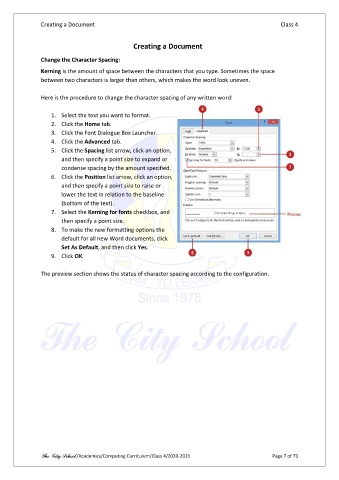
               Here is the procedure to change the character spacing of any written word:

                   1.  Select the text you want to format.
                   2.  Click the Home tab.
                   3.  Click the Font Dialogue Box Launcher.
                   4.  Click the Advanced tab.
                   5.  Click the Spacing list arrow, click an option,
                       and then specify a point size to expand or
                       condense spacing by the amount specified.
                   6.  Click the Position list arrow, click an option,
                       and then specify a point size to raise or
                       lower the text in relation to the baseline
                       (bottom of the text).
                   7.  Select the Kerning for fonts checkbox, and
                       then specify a point size.
                   8.  To make the new formatting options the
                       default for all new Word documents, click
                       Set As Default, and then click Yes.
                   9.  Click OK.

               The preview section shows the status of character spacing according to the configuration.


               The City School /Academics/Computing Curriculum/Class 4/2020-2021                 Page 7 of 73

