


Page 9 - Computing Book 4
P. 9
Creating a Document                                                                  Class 4


               Change Line and Paragraph Spacing:

               The lines in all Word documents are single-spaced by default, which is appropriate for letters and
               most documents. You can easily change your document line spacing to double or 1.5 lines to allow
               extra space between every line. This is useful when you want to make notes on a printed document.


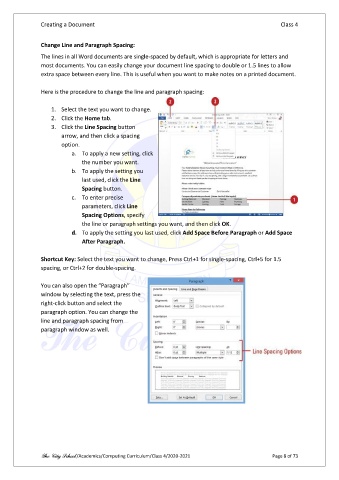
               Here is the procedure to change the line and paragraph spacing:

                   1.  Select the text you want to change.
                   2.  Click the Home tab.
                   3.  Click the Line Spacing button
                       arrow, and then click a spacing
                       option.
                          a.  To apply a new setting, click
                              the number you want.
                          b.  To apply the setting you
                              last used, click the Line
                              Spacing button.
                          c.  To enter precise
                              parameters, click Line
                              Spacing Options, specify
                              the line or paragraph settings you want, and then click OK.
                          d.  To apply the setting you last used, click Add Space Before Paragraph or Add Space
                              After Paragraph.

               Shortcut Key: Select the text you want to change, Press Ctrl+1 for single-spacing, Ctrl+5 for 1.5
               spacing, or Ctrl+2 for double-spacing.

               You can also open the “Paragraph”
               window by selecting the text, press the
               right-click button and select the
               paragraph option. You can change the
               line and paragraph spacing from
               paragraph window as well.


               The City School /Academics/Computing Curriculum/Class 4/2020-2021                 Page 8 of 73

