


Page 10 - Computing Book 4
P. 10
Creating a Document                                                                  Class 4


               Indentation:

               Adding indentation to text adds structure to your document by allowing you to separate
               information. Whether you'd like to move a single line or an entire paragraph, you can use the tab
               selector and the horizontal ruler to set tabs and indents.

               To Indent Using the Tab Key:
               Another quick way to indent a text/paragraph is to use the Tab key as per your requirement. This
               will create a first-line indent of 1/2 inch.

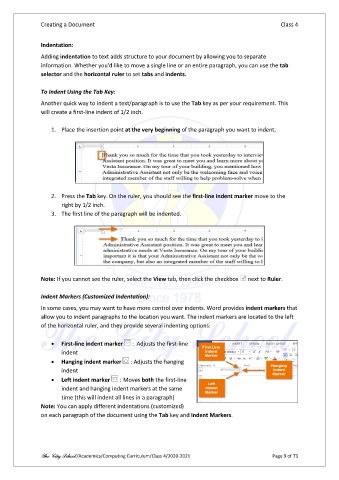
                   1.  Place the insertion point at the very beginning of the paragraph you want to indent.


                   2.  Press the Tab key. On the ruler, you should see the first-line indent marker move to the
                       right by 1/2 inch.
                   3.  The first line of the paragraph will be indented.


               Note: If you cannot see the ruler, select the View tab, then click the checkbox    next to Ruler.

               Indent Markers (Customized Indentation):

               In some cases, you may want to have more control over indents. Word provides indent markers that
               allow you to indent paragraphs to the location you want. The indent markers are located to the left
               of the horizontal ruler, and they provide several indenting options:

                   •  First-line indent marker    :  Adjusts the first-line
                       indent
                   •  Hanging indent marker    : Adjusts the hanging
                       indent
                   •  Left indent marker   : Moves both the first-line
                       indent and hanging indent markers at the same
                       time (this will indent all lines in a paragraph)
               Note: You can apply different indentations (customized)
               on each paragraph of the document using the Tab key and Indent Markers.


               The City School /Academics/Computing Curriculum/Class 4/2020-2021                 Page 9 of 73

