


Page 12 - Computing Book 4
P. 12
Creating a Document                                                                  Class 4


               Columns in a Document:

               Sometimes the information you include in your document is best displayed in columns. Not only can
               columns help improve readability, but some types of documents—like newspaper articles,
               newsletters, and flyers—are often written in column format. Word also allows you to adjust your
               columns by adding column breaks.

               Here is the procedure to add columns in a document:

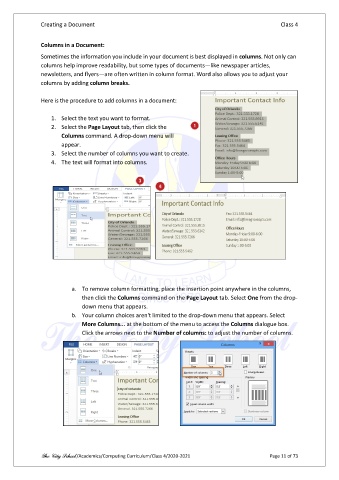
                   1.  Select the text you want to format.
                   2.  Select the Page Layout tab, then click the
                       Columns command. A drop-down menu will
                       appear.
                   3.  Select the number of columns you want to create.
                   4.  The text will format into columns.


                          a.  To remove column formatting, place the insertion point anywhere in the columns,
                              then click the Columns command on the Page Layout tab. Select One from the drop-
                              down menu that appears.
                          b.  Your column choices aren't limited to the drop-down menu that appears. Select
                              More Columns... at the bottom of the menu to access the Columns dialogue box.
                              Click the arrows next to the Number of columns: to adjust the number of columns.


               The City School /Academics/Computing Curriculum/Class 4/2020-2021                Page 11 of 73

