


Page 13 - Computing Book 5
P. 13
Working with Media                                                                   Class 5


               Open Project:

               Click on Open Project to choose from the projects (.wfp files) saved on your computer.

               New Project:
               Select an aspect ratio from the dropdown and then click on New Project to enter the editing
               interface and begin a new project.

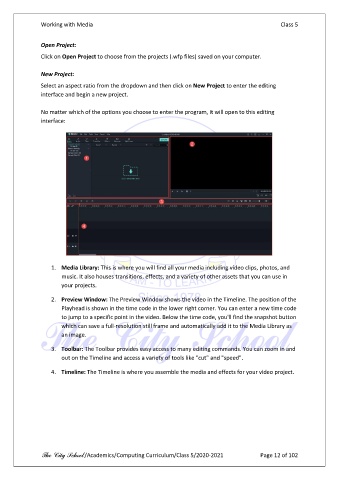
               No matter which of the options you choose to enter the program, it will open to this editing
               interface:


                   1.  Media Library: This is where you will find all your media including video clips, photos, and
                       music. It also houses transitions, effects, and a variety of other assets that you can use in
                       your projects.

                   2.  Preview Window: The Preview Window shows the video in the Timeline. The position of the
                       Playhead is shown in the time code in the lower right corner. You can enter a new time code
                       to jump to a specific point in the video. Below the time code, you'll find the snapshot button
                       which can save a full-resolution still frame and automatically add it to the Media Library as
                       an image.

                   3.  Toolbar: The Toolbar provides easy access to many editing commands. You can zoom in and
                       out on the Timeline and access a variety of tools like "cut" and "speed".

                   4.  Timeline: The Timeline is where you assemble the media and effects for your video project.


               The City School /Academics/Computing Curriculum/Class 5/2020-2021            Page 12 of 102

