


Page 16 - Computing Book 5
P. 16
Working with Media                                                                   Class 5


               How to select multiple files at once

                   •  If you hold down the Ctrl key or the Shift key as you click a file, you will be able to continue
                       selecting more files.
                   •  Ctrl allows you to select multiple files that are anywhere on your file list, not necessarily next
                       to each other.
                   •  Shift allows you to select a group of files that are next to each other by clicking one file, and
                       then holding Shift and clicking the last file. All the files in-between are then selected.

               Basic Editing
               Editing Video

               After your media files (videos, images, etc.) have been imported to Filmora9 (latest Filmora version
               9), it’s time to start editing. This tutorial will go over arranging clips in your timeline, cleaning up
               your footage, editing out unwanted parts, and more.

               To select a single media file: click on its thumbnail.

               To select multiple media files: press and hold [Ctrl], and then click the thumbnails of the media you
               want to select. To select a sequence of media files: click the first thumbnail in the sequence, press
               and hold [Shift], and then click the last thumbnail in the sequence.

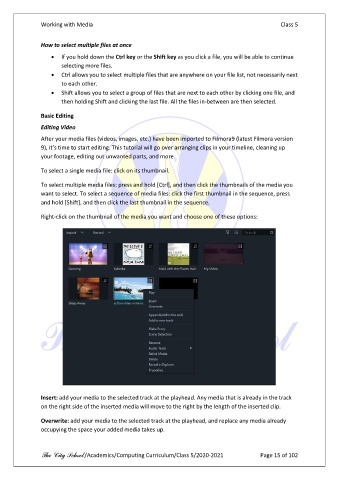
               Right-click on the thumbnail of the media you want and choose one of these options:


               Insert: add your media to the selected track at the playhead. Any media that is already in the track
               on the right side of the inserted media will move to the right by the length of the inserted clip.


               Overwrite: add your media to the selected track at the playhead, and replace any media already
               occupying the space your added media takes up.


               The City School /Academics/Computing Curriculum/Class 5/2020-2021            Page 15 of 102

