


Page 17 - Computing Book 5
P. 17
Working with Media                                                                   Class 5


               Append (add to the end): add your media as the last piece of media in the selected track.

               Add to new track: add your media to a newly created track which has no other media.


               Trim Video Clips
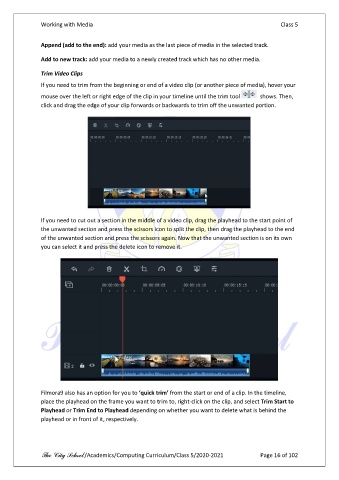
               If you need to trim from the beginning or end of a video clip (or another piece of media), hover your
               mouse over the left or right edge of the clip in your timeline until the trim tool    shows. Then,
               click and drag the edge of your clip forwards or backwards to trim off the unwanted portion.


               If you need to cut out a section in the middle of a video clip, drag the playhead to the start point of
               the unwanted section and press the scissors icon to split the clip, then drag the playhead to the end
               of the unwanted section and press the scissors again. Now that the unwanted section is on its own
               you can select it and press the delete icon to remove it.


               Filmora9 also has an option for you to ‘quick trim’ from the start or end of a clip. In the timeline,
               place the playhead on the frame you want to trim to, right-click on the clip, and select Trim Start to
               Playhead or Trim End to Playhead depending on whether you want to delete what is behind the
               playhead or in front of it, respectively.


               The City School /Academics/Computing Curriculum/Class 5/2020-2021            Page 16 of 102

