


Page 15 - Computing Book 5
P. 15
Working with Media                                                                   Class 5


               Open an Existing Project when Editing

               Besides opening projects at the beginning, you can also open an existing project when editing. Click
               File and you can choose Open Project (ctrl+O) or Open Recent to locate the .wfp file.

               Import Videos, Pictures, and Audio Files into Filmora:
               You can import files with the following file name extensions into Filmora to use in your project:


                   •  Video files: .asf, .avi, .dvr-ms, .m1v, .mp2, .mp2v, .mpe, .mpeg, .mpg, .mpv2, .wm, and .wmv
                   •  Audio files: .aif, .aifc, .aiff .asf, .au, .mp2, .mp3, .mpa, .snd, .wav, and .wma
                   •  Picture files: .bmp, .dib, .emf, .gif, .jfif, .jpe, .jpeg, .jpg, .png, .tif, .tiff, and .wmf

               You can also import files into Filmora that have a different extension from the ones listed above, but
               not all file types will work when you try to use them to make a movie.

               Importing Media

               Wondershare Filmora9 enables you to import standard, HD, and even 4K videos. You can also record
               a video with Filmora using your computer's webcam or by recording your computer screen. You can
               even record a voiceover with Filmora.

               Your media clips - including imported videos, images, and audio files will be located in the Media
               Library where you can access them quickly and easily.

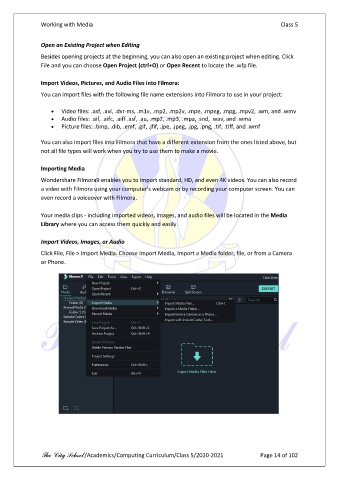
               Import Videos, Images, or Audio

               Click File, File > Import Media. Choose Import Media, Import a Media folder, file, or from a Camera
               or Phone.


               The City School /Academics/Computing Curriculum/Class 5/2020-2021            Page 14 of 102

