


Page 37 - TCS ICT Book 8
P. 37
The City School  2021-2022


             2.11. Scale and Rotate


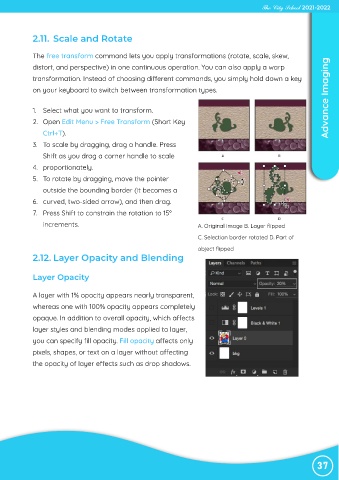
             The free transform command lets you apply transformations (rotate, scale, skew,

             distort, and perspective) in one continuous operation. You can also apply a warp
             transformation. Instead of choosing different commands, you simply hold down a key
             on your keyboard to switch between transformation types.                                               Advance Imaging


             1.  Select what you want to transform.

             2.  Open Edit Menu > Free Transform (Short Key
                Ctrl+T).
             3.  To scale by dragging, drag a handle. Press

                Shift as you drag a corner handle to scale

             4.  proportionately.
             5.  To rotate by dragging, move the pointer
                outside the bounding border (it becomes a

             6.  curved, two-sided arrow), and then drag.

             7.  Press Shift to constrain the rotation to 15°
                increments.                                            A. Original image B. Layer flipped

                                                                       C. Selection border rotated D. Part of

                                                                       object flipped
             2.12. Layer Opacity and Blending


             Layer Opacity


             A layer with 1% opacity appears nearly transparent,
             whereas one with 100% opacity appears completely
             opaque. In addition to overall opacity, which affects

             layer styles and blending modes applied ta layer,

             you can specify fill opacity. Fill opacity affects only
             pixels, shapes, or text on a layer without affecting
             the opacity of layer effects such as drop shadows.


                                                                                                                37

