


Page 86 - TCS ICT Book 5
P. 86
The City School  2021-2022


           Creating Layers


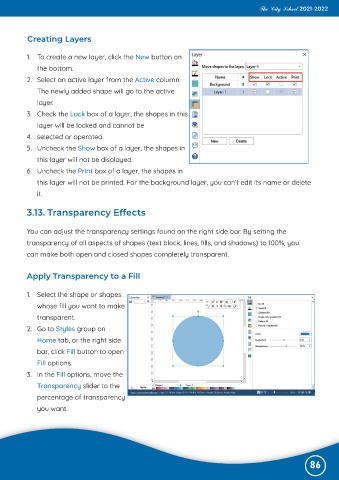
          1.  To create a new layer, click the New button on

              the bottom.
          2.  Select an active layer from the Active column.

              The newly added shape will go to the active
              layer.

          3.  Check the Lock box of a layer, the shapes in this
              layer will be locked and cannot be

          4.  selected or operated.
          5.  Uncheck the Show box of a layer, the shapes in

              this layer will not be displayed.
          6.  Uncheck the Print box of a layer, the shapes in

              this layer will not be printed. For the background layer, you can’t edit its name or delete
              it.


          3.13. Transparency Effects


          You can adjust the transparency settings found on the right side bar. By setting the
          transparency of all aspects of shapes (text block, lines, fills, and shadows) to 100%, you
          can make both open and closed shapes completely transparent.


          Apply Transparency to a Fill


          1.  Select the shape or shapes

              whose fill you want to make
              transparent.

          2.  Go to Styles group on
              Home tab, or the right side

              bar, click Fill button to open
              Fill options.

          3.  In the Fill options, move the
              Transparency slider to the

              percentage of transparency
              you want.


                                                                                                              86

