


Page 239 - Learn To Program With Scratch
P. 239
Before                           After
                                          Drop-down
                                           menu


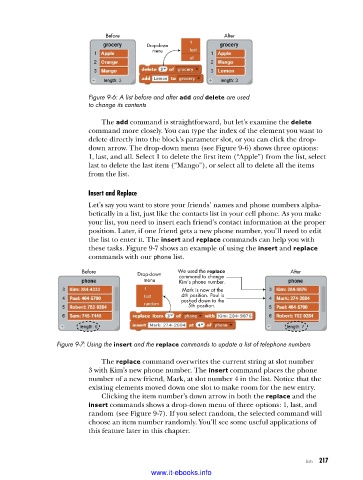
                          Figure 9-6: A list before and after add and delete are used
                          to change its contents

                             The add command is straightforward, but let’s examine the delete
                          command more closely. You can type the index of the element you want to
                          delete directly into the block’s parameter slot, or you can click the drop-
                          down arrow. The drop-down menu (see Figure 9-6) shows three options:
                          1, last, and all. Select 1 to delete the first item (“Apple”) from the list, select
                          last to delete the last item (“Mango”), or select all to delete all the items
                          from the list.


                          Insert and Replace
                          Let’s say you want to store your friends’ names and phone numbers alpha-
                          betically in a list, just like the contacts list in your cell phone. As you make
                          your list, you need to insert each friend’s contact information at the proper
                          position. Later, if one friend gets a new phone number, you’ll need to edit
                          the list to enter it. The insert and replace commands can help you with
                          these tasks. Figure 9-7 shows an example of using the insert and replace
                          commands with our phone list.
                        Before         Drop-down  We used the replace             After
                                         menu      command to change
                                                   Kim’s phone number.
                                                    Mark is now at the
                                                   4th position. Paul is
                                                   pushed down to the
                                                     5th position.


                 Figure 9-7: Using the insert and the replace commands to update a list of telephone numbers

                             The replace command overwrites the current string at slot number
                          3 with Kim’s new phone number. The insert command places the phone
                          number of a new friend, Mark, at slot number 4 in the list. Notice that the
                          existing elements moved down one slot to make room for the new entry.
                             Clicking the item number’s down arrow in both the replace and the
                          insert commands shows a drop-down menu of three options: 1, last, and
                          random (see Figure 9-7). If you select random, the selected command will
                          choose an item number randomly. You’ll see some useful applications of
                          this feature later in this chapter.


                                                                                      Lists   217

                                           www.it-ebooks.info

