


Page 25 - Learn To Program With Scratch
P. 25
This script waits for one second between color changes, and the four
                          cats you see here show the sprite’s new color after each change.


                                                    try it out 1-1
                            Though we haven’t discussed the blocks in Figure 1-2 yet, read them, look at their
                            shapes, and try to figure out the steps the script took to make the cat teal . (Hint:
                            The first purple block returns the cat to its original color .) What do you think would
                            happen if we removed the wait block from the script?


                             This book covers Scratch 2, which was released in May 2013. This ver-
                          sion allows you to create projects directly in your web browser so you don’t
                          have to install any software on your computer, and we’ll rely on Scratch’s
                          web interface for the material in this book.
                             Now, that you know a little about this language, it’s time to kick off our
                          programming journey and learn how to use it.


               Scratch Programming environment

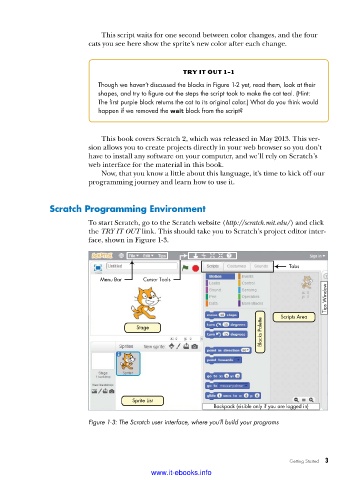
                          To start Scratch, go to the Scratch website (http://scratch.mit.edu/) and click
                          the TRY IT OUT link. This should take you to Scratch’s project editor inter-
                          face, shown in Figure 1-3.


                                                                                 Tabs
                             Menu Bar    Cursor Tools
                                                                                            Tips Window


                                                                               Scripts Area
                                                                          Blocks Palette
                                       Stage


                                      Sprite List
                                                            Backpack (visible only if you are logged in)
                          Figure 1-3: The Scratch user interface, where you’ll build your programs


                                                                                 Getting Started   3

                                           www.it-ebooks.info

