


Page 267 - Learn To Program With Scratch
P. 267
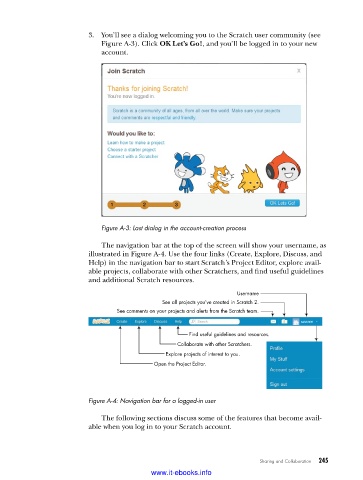
3.  You’ll see a dialog welcoming you to the Scratch user community (see
                             Figure A-3). Click OK Let’s Go!, and you’ll be logged in to your new
                             account.


                             Figure A-3: Last dialog in the account-creation process

                             The navigation bar at the top of the screen will show your username, as
                          illustrated in Figure A-4. Use the four links (Create, Explore, Discuss, and
                          Help) in the navigation bar to start Scratch’s Project Editor, explore avail-
                          able projects, collaborate with other Scratchers, and find useful guidelines
                          and additional Scratch resources.
                                                                   Username
                                              See all projects you’ve created in Scratch 2.
                                 See comments on your projects and alerts from the Scratch team.
                                                                                     uname
                                                      Find useful guidelines and resources.
                                                  Collaborate with other Scratchers.
                                               Explore projects of interest to you.
                                            Open the Project Editor.


                          Figure A-4: Navigation bar for a logged-in user

                             The following sections discuss some of the features that become avail-
                          able when you log in to your Scratch account.


                                                                         Sharing and Collaboration    245

                                           www.it-ebooks.info

