


Page 272 - Learn To Program With Scratch
P. 272
Sharing Your Project

                         Once you are done with your application, you can share it with the Scratch
                         community by clicking the Share button. When you share a project, every-
                         one can find it online and look inside it.
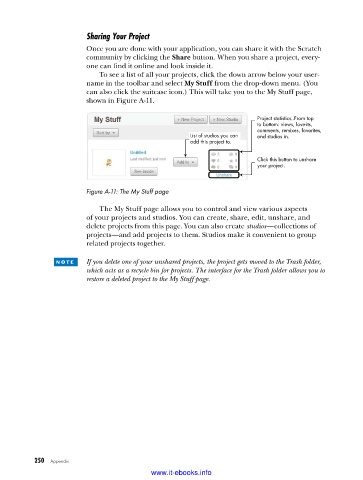
                             To see a list of all your projects, click the down arrow below your user-
                         name in the toolbar and select My Stuff from the drop-down menu. (You
                         can also click the suitcase icon.) This will take you to the My Stuff page,
                         shown in Figure A-11.

                                                                        Project statistics. From top

                                                                                  .
                                                                        to bottom: views, love-its,
                                                                        comments, remixes, favorites,
                                                      List of studios you can  and studios in.
                                                      add this project to.
                                                                        Click this button to unshare
                                                                        your project.


                         Figure A-11: The My Stuff page


                             The My Stuff page allows you to control and view various aspects
                         of your projects and studios. You can create, share, edit, unshare, and
                         delete projects from this page. You can also create studios—collections of
                         projects—and add projects to them. Studios make it convenient to group
                         related projects together.

                 n o t e    If you delete one of your unshared projects, the project gets moved to the Trash folder,
                         which acts as a recycle bin for projects. The interface for the Trash folder allows you to
                         restore a deleted project to the My Stuff page.


           250   Appendix
                                           www.it-ebooks.info

