


Page 271 - Learn To Program With Scratch
P. 271
When you are logged in, Scratch automatically saves your work in the
                          cloud (that is, on the Scratch server), but it’s still a good idea to click Save
                          before you exit Scratch. The Save as a copy option saves your current project
                          with a different name. If your current project is named Test, for example, the
                          new project will be named Test copy. (You can change that name by typing
                          a new one in the project’s name edit box.) The Revert option discards any
                          changes you’ve made since you opened the current project.
                             If you want to save your projects on your computer rather than in the
                          cloud, use the Download to your computer option. The Upload from your
                          computer option, on the other hand, allows you to load a Scratch project
                          from your computer to the Project Editor. You can use this option to upload
                          projects created with Scratch 1.4 and convert them to the Scratch 2 format.

                          Remixing a Project
                          Click the Remix button when you have some ideas to add to another
                          Scratcher’s project. This will copy the selected project to your account
                          and give you a starting point for your work.
                             You can also click View the remix tree on the project’s page (see Fig-
                          ure A-6) to see how the project has evolved over time and pick the branch
                          that you’d like to copy from.
                             If you share your remixed project, the project’s page will list the origi-
                          nal creator(s) and provide links to their projects.

                          The Project Page
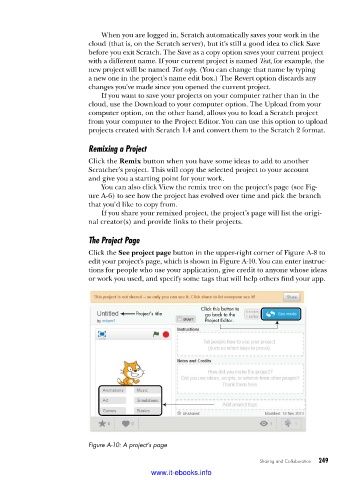
                          Click the See project page button in the upper-right corner of Figure A-8 to
                          edit your project’s page, which is shown in Figure A-10. You can enter instruc-
                          tions for people who use your application, give credit to anyone whose ideas
                          or work you used, and specify some tags that will help others find your app.


                                                         Click this button to
                                       Project’s title    go back to the
                                                          Project Editor.


                          Figure A-10: A project’s page

                                                                         Sharing and Collaboration    249

                                           www.it-ebooks.info

