


Page 62 - Learn To Program With Scratch
P. 62
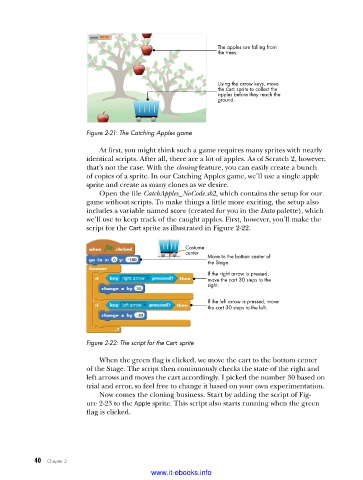
The apples are falling from
                                                              the trees.


                                                              Using the arrow keys, move
                                                              the Cart sprite to collect the
                                                              apples before they reach the
                                                              ground.


                         Figure 2-21: The Catching Apples game

                             At first, you might think such a game requires many sprites with nearly
                         identical scripts. After all, there are a lot of apples. As of Scratch 2, however,
                         that’s not the case. With the cloning feature, you can easily create a bunch
                         of copies of a sprite. In our Catching Apples game, we’ll use a single apple
                         sprite and create as many clones as we desire.
                             Open the file CatchApples_NoCode.sb2, which contains the setup for our
                         game without scripts. To make things a little more exciting, the setup also
                         includes a variable named score (created for you in the Data palette), which
                         we’ll use to keep track of the caught apples. First, however, you’ll make the
                         script for the Cart sprite as illustrated in Figure 2-22.

                                                     Costume
                                                     center
                                                           Move to the bottom center of
                                                           the Stage.
                                                           If the right arrow is pressed,
                                                           move the cart 30 steps to the
                                                           right.

                                                           If the left arrow is pressed, move
                                                           the cart 30 steps to the left.


                         Figure 2-22: The script for the Cart sprite

                             When the green flag is clicked, we move the cart to the bottom center
                         of the Stage. The script then continuously checks the state of the right and
                         left arrows and moves the cart accordingly. I picked the number 30 based on
                         trial and error, so feel free to change it based on your own experimentation.
                             Now comes the cloning business. Start by adding the script of Fig-
                         ure 2-23 to the Apple sprite. This script also starts running when the green
                         flag is clicked.


           40   Chapter 2
                                           www.it-ebooks.info

