


Page 61 - Learn To Program With Scratch
P. 61
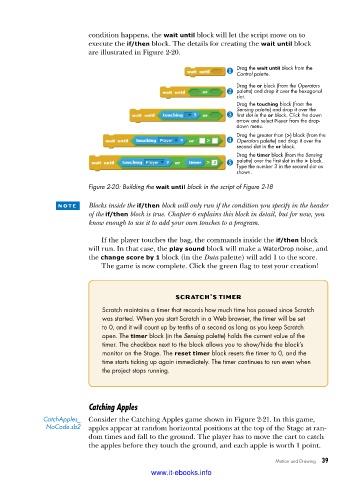
condition happens, the wait until block will let the script move on to
execute the if/then block. The details for creating the wait until block
are illustrated in Figure 2-20.
Drag the wait until block from the
Control palette.
Drag the or block (from the Operators
palette) and drop it over the hexagonal
slot.
Drag the touching block (from the
Sensing palette) and drop it over the
first slot in the or block. Click the down
arrow and select Player from the drop-
down menu.
Drag the greater than (>) block (from the
Operators palette) and drop it over the
second slot in the or block.
Drag the timer block (from the Sensing
palette) over the first slot in the > block.
Type the number 3 in the second slot as
shown.
Figure 2-20: Building the wait until block in the script of Figure 2-18
n o t e Blocks inside the if/then block will only run if the condition you specify in the header
of the if/then block is true. Chapter 6 explains this block in detail, but for now, you
know enough to use it to add your own touches to a program.
If the player touches the bag, the commands inside the if/then block
will run. In that case, the play sound block will make a WaterDrop noise, and
the change score by 1 block (in the Data palette) will add 1 to the score.
The game is now complete. Click the green flag to test your creation!
Scr atch’S timer
Scratch maintains a timer that records how much time has passed since Scratch
was started . When you start Scratch in a Web browser, the timer will be set
to 0, and it will count up by tenths of a second as long as you keep Scratch
open . The timer block (in the Sensing palette) holds the current value of the
timer . The checkbox next to the block allows you to show/hide the block’s
monitor on the Stage . The reset timer block resets the timer to 0, and the
time starts ticking up again immediately . The timer continues to run even when
the project stops running .
Catching Apples
CatchApples_ Consider the Catching Apples game shown in Figure 2-21. In this game,
NoCode .sb2 apples appear at random horizontal positions at the top of the Stage at ran-
dom times and fall to the ground. The player has to move the cart to catch
the apples before they touch the ground, and each apple is worth 1 point.
Motion and Drawing 39
www.it-ebooks.info

