


Page 73 - Learn To Program With Scratch
P. 73
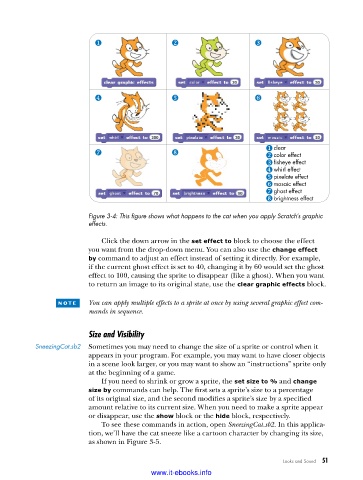
clear
color effect
fisheye effect
whirl effect
pixelate effect
mosaic effect
ghost effect
brightness effect
Figure 3-4: This figure shows what happens to the cat when you apply Scratch’s graphic
effects .
Click the down arrow in the set effect to block to choose the effect
you want from the drop-down menu. You can also use the change effect
by command to adjust an effect instead of setting it directly. For example,
if the current ghost effect is set to 40, changing it by 60 would set the ghost
effect to 100, causing the sprite to disappear (like a ghost). When you want
to return an image to its original state, use the clear graphic effects block.
n o t e You can apply multiple effects to a sprite at once by using several graphic effect com-
mands in sequence.
Size and Visibility
SneezingCat .sb2 Sometimes you may need to change the size of a sprite or control when it
appears in your program. For example, you may want to have closer objects
in a scene look larger, or you may want to show an “instructions” sprite only
at the beginning of a game.
If you need to shrink or grow a sprite, the set size to % and change
size by commands can help. The first sets a sprite’s size to a percentage
of its original size, and the second modifies a sprite’s size by a specified
amount relative to its current size. When you need to make a sprite appear
or disappear, use the show block or the hide block, respectively.
To see these commands in action, open SneezingCat.sb2. In this applica-
tion, we’ll have the cat sneeze like a cartoon character by changing its size,
as shown in Figure 3-5.
Looks and Sound 51
www.it-ebooks.info

