


Page 128 - Scratch Programming Playground
P. 128
D     make clones of the Brick


                         Now the game needs lots of bricks, so you’ll create one Brick
                         sprite and then clone it using Scratch’s create clone block.
                         4. Add the Brick Sprite

                         Click the Choose sprite from library button next to New
                         sprite, and select the Button 2 sprite from the Sprite Library
                         window. Click the   button to open the Info area, and rename
                         this sprite Brick.
                              You’ll have to create a new variable by selecting the orange
                         Data category and clicking the Make a Variable button. Name
                         this variable Score, and set it to For all sprites. Then add the
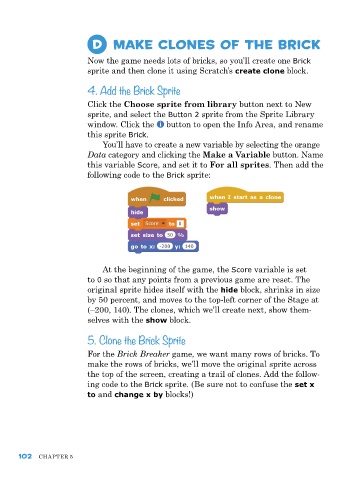
                         following code to the Brick sprite:


                             at the beginning of the game, the Score variable is set
                         to 0 so that any points from a previous game are reset. The
                         original sprite hides itself with the hide block, shrinks in size
                         by 50 percent, and moves to the top-left corner of the Stage at
                         (–200, 140). The clones, which we’ll create next, show them-
                         selves with the show block.

                         5. Clone the Brick Sprite

                         For the Brick Breaker game, we want many rows of bricks. To
                         make the rows of bricks, we’ll move the original sprite across
                         the top of the screen, creating a trail of clones. add the follow-
                         ing code to the Brick sprite. (Be sure not to confuse the set x
                         to and change x by blocks!)


      102   ChapTer 5

