


Page 72 - Scratch Programming Playground
P. 72
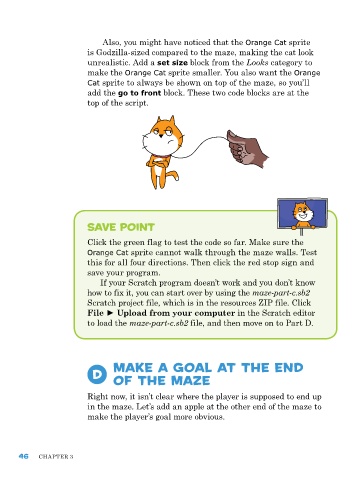
also, you might have noticed that the Orange Cat sprite
                         is Godzilla-sized compared to the maze, making the cat look
                         unrealistic. add a set size block from the Looks category to
                         make the Orange Cat sprite smaller. You also want the Orange
                         Cat sprite to always be shown on top of the maze, so you’ll
                         add the go to front block. these two code blocks are at the
                         top of the script.


                         Save Point

                         Click the green flag to test the code so far. Make sure the
                         Orange Cat sprite cannot walk through the maze walls. test
                         this for all four directions. then click the red stop sign and
                         save your program.
                             If your Scratch program doesn’t work and you don’t know
                         how to fix it, you can start over by using the maze-part-c.sb2
                         Scratch project file, which is in the resources zIp file. Click
                         File ► Upload from your computer in the Scratch editor
                         to load the maze-part-c.sb2 file, and then move on to part D.


                                 Make a Goal at the end
                           D     of the Maze


                         right now, it isn’t clear where the player is supposed to end up
                         in the maze. Let’s add an apple at the other end of the maze to
                         make the player’s goal more obvious.


      46    Chapter 3

