


Page 69 - Scratch Programming Playground
P. 69
B     Make the Maze Levels


            next, we’ll create the maze sprite and set the backdrop. the
            maze game would quickly get boring if it had only one maze,
            so we’ll also add multiple levels to the game.

            3. Download the Maze Images

            You could draw the maze sprite yourself, but let’s use images
            from the zIp file instead. One of the maze images is the Maze

            .sprite2 file.
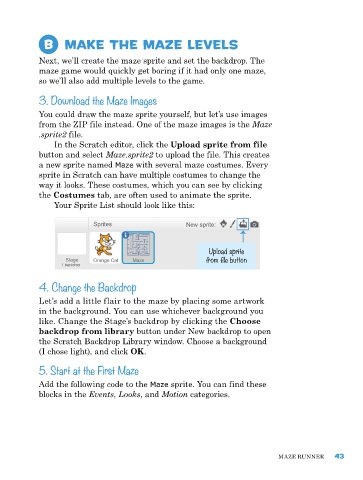
                In the Scratch editor, click the Upload sprite from file
            button and select Maze.sprite2 to upload the file. this creates
            a new sprite named Maze with several maze costumes. every
            sprite in Scratch can have multiple costumes to change the
            way it looks. these costumes, which you can see by clicking
            the Costumes tab, are often used to animate the sprite.
                Your Sprite List should look like this:


                                                           Upload sprite
                                                          from file button


            4. Change the Backdrop


            Let’s add a little flair to the maze by placing some artwork
            in the background. You can use whichever background you
            like. Change the Stage’s backdrop by clicking the Choose

            backdrop from library button under new backdrop to open
            the Scratch Backdrop Library window. Choose a background
            (I chose light), and click OK.

            5. Start at the First Maze

            add the following code to the Maze sprite. You can find these
            blocks in the Events, Looks, and Motion categories.


                                                                              Maze runner     43

