


Page 73 - Scratch Programming Playground
P. 73
7. Create the Apple Sprite


            Click the Choose sprite from library button (which looks
            like a face) next to new sprite. When the Sprite Library win-
            dow appears, select Apple and click OK to add a new sprite
            named Apple to the Sprite List.
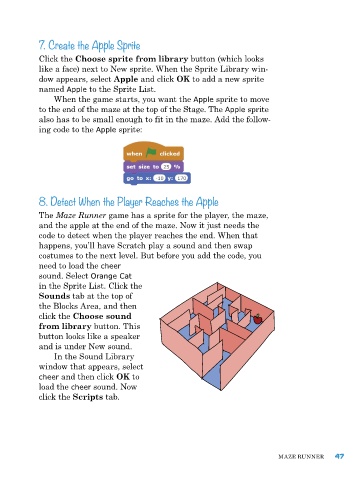
                When the game starts, you want the Apple sprite to move
            to the end of the maze at the top of the Stage. the Apple sprite
            also has to be small enough to fit in the maze. add the follow-
            ing code to the Apple sprite:


            8. Detect When the Player Reaches the Apple

            the Maze Runner game has a sprite for the player, the maze,
            and the apple at the end of the maze. now it just needs the
            code to detect when the player reaches the end. When that
            happens, you’ll have Scratch play a sound and then swap
            costumes to the next level. But before you add the code, you
            need to load the cheer
            sound. Select Orange Cat
            in the Sprite List. Click the
            Sounds tab at the top of
            the Blocks area, and then
            click the Choose sound
            from library button. this
            button looks like a speaker
            and is under new sound.
                In the Sound Library
            window that appears, select
            cheer and then click OK to
            load the cheer sound. now
            click the Scripts tab.


                                                                              Maze runner     47

