


Page 11 - QC-Smart_ PSS- Manual_webb ENG_Neat
P. 11
Adjust - This will open a new window with four sliders which allow you to adjust the
 Brightness, Contrast, Color Saturation and Hue of that channel’s video. These settings will not
 affect the recorded video.

 Audio/Talk - If you have audio-equipped cameras, or a microphone co-located with a
 camera, you can listen to the audio from that equipment. Similarly, if you have a microphone   1
 connected to your computer and a speaker located near to the camera’s location, you can
 use that to communicate. The system is not “duplex” like a telephone where you can talk and
 hear at the same time, but rather it is like a CB radio or walky-talky where you will need to turn
 off your microphone to hear any response. Depending upon network speeds, there may be a
 lag, or delay between the time you say something and the person on the other end will here it.  2

 Save as Video Task - You can save a camera as a “Video Task” that will create a shortcut
 to that camera which can be accessed through the Tasks pulldown at the lower left of the   3
 Preview window (Item 6 in Picture 3-70).
                                                                   4
 Full Screen - This will bring the camera viewing windows to full screen by hiding the control
 areas on the top, right and bottom. If you are viewing in a four-camera split screen, for
 example, the four screens will occupy the available space on the computer monitor. Press   5  6  7  8
 Esc on the keyboard to return to normal viewing mode.
                                                        9
 VIDEO SEARCH AND PLAYBACK
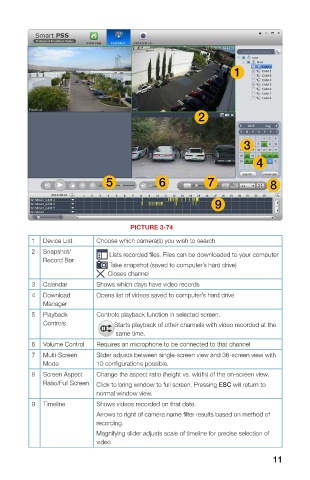
 Using Smart PSS to search for video recorded on your DVR functions in the same manner as
 the search and playback function on the DVR itself.   PICTURE 3-74
 STEP 1. Select the camera(s) you want   1  Device List  Choose which camera(s) you wish to search
 to search. The Calendar below the   2  Snapshot/   Lists recorded files. Files can be downloaded to your computer
 camera list will highlight those dates   Record Bar
 with recorded video in green. The    Take snapshot (saved to computer’s hard drive)
 current date will be highlighted in     Closes channel
 blue. Depending on network speeds,   3  Calendar  Shows which days have video records
 it may take a few moments for the   4  Download   Opens list of videos saved to computer’s hard drive
 Calendar to update.  Manager
 STEP 2. Select the date to review and   5  Playback   Controls playback function in selected screen.
 press Search. The timeline at the   Controls     Starts playback of other channels with video recorded at the
 bottom of the window will show              same time.
 colored blocks representing video
 that has been recorded.  6  Volume Control  Requires an microphone to be connected to that channel
 STEP 3. Click on a colored block to   7  Multi-Screen   Slider adjusts between single-screen view and 36-screen view with
 begin playback. The playback   Mode  10 configurations possible.
 controls operate in the normal   8  Screen Aspect   Change the aspect ratio (height vs. width) of the on-screen view.
 manner. The slider is used to speed   Ratio/Full Screen  Click to bring window to full screen. Pressing ESC will return to
 up or slow down the playback rate.  normal window view.
         9  Timeline      Shows videos recorded on that date.
 As with Preview mode, the screen with the   Arrows to right of camera name filter results based on method of
 green frame is considered the “active” screen   recording.
 for purposes of using the controls.
                          Magnifying slider adjusts scale of timeline for precise selection of
                          video
 PICTURE 3-73
 10                                                                    11

