


Page 49 - Executive Director
P. 49
8010 – Procedures Manual Formatting Instructions


               Review the documents for content and edit the document name to order the list
                       of  files  in  the  sequence  in  which  you  want  them  to  appear  in  the
                       combined file.


               Open a blank Word Document

               Click to select the "Insert" tab on the ribbon and find the "Object" button in the

                       Text group.              Click the down arrow and select "Text from file"

               Browse to the files location, click once on the first file in the list to highlight it,
                       then hold down the Shift key on the keyboard and click the last file in the

                       list to select the range of files.

               Click "Insert" in the lower right corner of the window to insert the files into the
                       blank document.


               To start each policy on its own page, insert a page break before the document
                       name by placing the cursor before the name and hitting Control+Enter on
                       the keyboard.


               Now mark the file names to create the Table of Contents:

                       Go to the top of the document


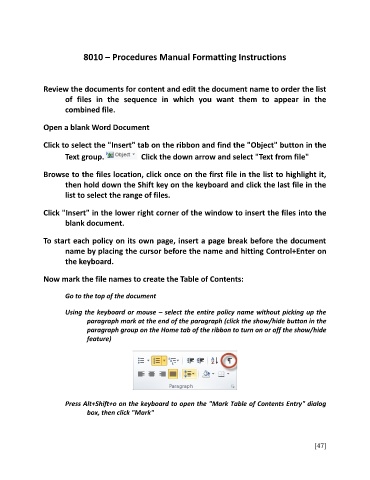
                       Using the keyboard or mouse – select the entire policy name without picking up the
                              paragraph mark at the end of the paragraph (click the show/hide button in the
                              paragraph group on the Home tab of the ribbon to turn on or off the show/hide
                              feature)


                       Press Alt+Shift+o on the keyboard to open the "Mark Table of Contents Entry" dialog
                              box, then click "Mark"


                                                                                                         [47]

