


Page 27 - X-Air User's Manual
P. 27
27   X AIR User Manual


        3.  Use the Reset button to return all bands to their default settings.   12.  Adjust the Attack to set how quickly the compressor takes effect when the
          A confirmation box will pop up to prevent accidental resets.  input signal rises above the threshold.
        4.  Select the Mode from the pull-down menu. PEQ types will often be used for   13.  Adjust the Hold to set how long the compressor takes to enter the release
          the first 3 bands, and a high cut or high shelf for the 4th band.  cycle once the audio drops below the threshold.
        5.  The currently-active band will be indicated on this button.  14.  Adjust the Release to set how quickly the compressor releases after the audio
                                                               drops below the threshold.
        6.  Click this button to turn a specific band on and off. This is useful for A/B
          testing how an adjustment affects the signal.     15.  Engage the key Filter with this button.
        7.  The gain adjustment for each band can be manually entered here, or you can   16.  Select the type of filter and frequencies with these faders.
          click and drag the band's corresponding number up and down.
                                                            17.  Select a channel or bus for the side chain filter from the pull-down menu.
        8.  The bandwidth (Q) can be manually entered here.
        9.  Each band’s specific frequency can be manually entered, or you can click and   7.7  Sends Tab
          drag the band's number to the desired frequency.
        10.  Engage the Spectrograph function to change from the standard RTA view to
          a spectrogram, which displays the signal energy over time. This can be useful
          for identifying feedback or phasing problems.

        11.  Press the Pre button to display the RTA pre-EQ rather than post-EQ.
        12.  Engage the RTA (Real Time Analyzer) with this button.
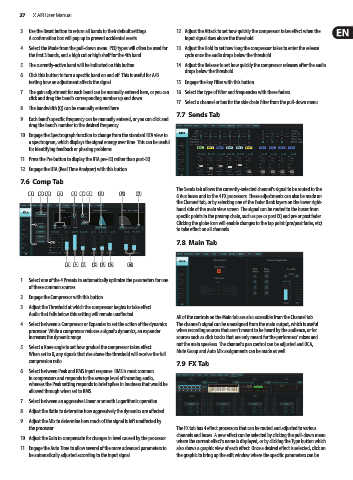
        7.6  Comp Tab
                                                            The Sends tab allows the currently-selected channel's signal to be routed to the
           (1) (2) (3)  (4)  (5) (7)  (6)  (11)  (15)  (17)  6 Aux buses and to the 4 FX processors. These adjustments can also be made on
                                                            the Channel tab, or by selecting one of the Fader Bank layers on the lower right-
                                                            hand side of the main view screen. The signal can be routed to the buses from
                                                            specific points in the preamp chain, such as pre or post EQ and pre or post fader.
                                                            Clicking the globe icon will enable changes to the tap point (pre/post fader, etc)
                                                            to take effect on all channels.
                                                            7.8  Main Tab


                       (8) (9) (10) (12) (13) (14)  (16)

        1.  Select one of the 4 Presets to automatically optimize the parameters for one
          of these common sources.
        2.  Engage the Compressor with this button.
        3.  Adjust the Threshold at which the compressor begins to take effect.
          Audio that falls below this setting will remain unaffected.
                                                            All of the controls on the Main tab are also accessible from the Channel tab.
        4.  Select between a Compressor or Expander to set the action of the dynamics   The channel’s signal can be unassigned from the main output, which is useful
          processor. While a compressor reduces a signal's dynamics, an expander   when recording sources that aren’t meant to be heard by the audience, or for
          increases the dynamic range.                      sources such as click tracks that are only meant for the performers’ mixes and
                                                            not the main speakers. The channel’s pan control can be adjusted and DCA,
        5.  Select a Knee angle to set how gradual the compressor takes effect.   Mute Group and Auto Mix assignments can be made as well.
          When set to 0, any signals that rise above the threshold will receive the full
          compression ratio.                                7.9  FX Tab
        6.  Select between Peak and RMS input response. RMS is most common
          in compressors and responds to the average level of incoming audio,
          whereas the Peak setting responds to brief spikes in loudness that would be
          allowed through when set to RMS.
        7.  Select between an aggressive Linear or smooth Logarithmic operation.
        8.  Adjust the Ratio to determine how aggressively the dynamics are affected.
        9.  Adjust the Mix to determine how much of the signal is left unaffected by
          the processor.                                    The FX tab has 4 effect processors that can be routed and adjusted to various
                                                            channels and buses. A new effect can be selected by clicking the pull-down menu
        10.  Adjust the Gain to compensate for changes in level caused by the processor.
                                                            where the current effect’s name is displayed, or by clicking the Type button which
        11.  Engage the Auto Time to allow several of the more advanced parameters to   also shows a graphic view of each effect. Once a desired effect is selected, click on
          be automatically adjusted according to the input signal.  the graphic to bring up the edit window where the specific parameters can be

