


Page 26 - X-Air User's Manual
P. 26
26  X AIR User Manual


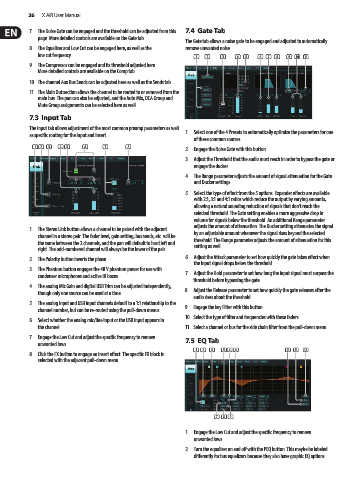
           7.  The Noise Gate can be engaged and the threshold can be adjusted from this   7.4  Gate Tab
             page. More detailed controls are available on the Gate tab.
                                                               The Gate tab allows a noise gate to be engaged and adjusted to automatically
           8.  The Equalizer and Low Cut can be engaged here, as well as the   remove unwanted noise.
             low cut frequency.
                                                                  (1) (2)  (3)  (4) (5)  (6) (7) (8)  (9) (10)  (11)
           9.  The Compressor can be engaged and its threshold adjusted here.
             More detailed controls are available on the Comp tab.
           10.  The channel Aux Bus Sends can be adjusted here as well as the Sends tab.
           11.  The Main Out section allows the channel to be routed to or removed from the
             main bus. The pan can also be adjusted, and the Auto Mix, DCA Group and
             Mute Group assignments can be selected here as well.

           7.3  Input Tab
           The Input tab allows adjustment of the most common preamp parameters as well   1.  Select one of the 4 Presets to automatically optimize the parameters for one
           as specific routing for the input and insert.
                                                                  of these common sources.
            (1)  (2) (3)  (4)  (5)  (6)  (7)  (8)              2.  Engage the Noise Gate with this button.

                                                               3.  Adjust the Threshold that the audio must reach in order to bypass the gate or
                                                                  engage the ducker.
                                                               4.  The Range parameter adjusts the amount of signal attenuation for the Gate
                                                                  and Ducker settings.
                                                               5.  Select the type of effect from the 5 options. Expander effects are available
                                                                  with 2:1, 3:1 and 4:1 ratios which reduce the output by varying amounts,
                                                                  allowing a natural sounding reduction of signals that don’t reach the
                                                                  selected threshold. The Gate setting enables a more aggressive drop in
                                                                  volume for signals below the threshold. An additional Range parameter
                                                                  adjusts the amount of attenuation. The Ducker setting attenuates the signal
           1.  The Stereo Link button allows a channel to be paired with the adjacent   by an adjustable amount whenever the signal rises beyond the selected
             channel in a stereo pair. The fader level, gain setting, bus sends, etc. will be   threshold. The Range parameter adjusts the amount of attenuation for this
             the same between the 2 channels, and the pan will default to hard left and   setting as well.
             right. The odd-numbered channel will always be the lower of the pair.
                                                               6.  Adjust the Attack parameter to set how quickly the gate takes effect when
           2.  The Polarity button inverts the phase.
                                                                  the input signal drops below the threshold.
           3.  The Phantom button engages the 48 V phantom power for use with
             condenser microphones and active DI boxes.        7.  Adjust the Hold parameter to set how long the input signal must surpass the
                                                                  threshold before bypassing the gate.
           4.  The analog Mic Gain and digital USB Trim can be adjusted independently,   8.  Adjust the Release parameter to set how quickly the gate releases after the
             though only one source can be used at a time.
                                                                  audio rises about the threshold.
           5.  The analog input and USB input channels default to a 1:1 relationship to the   9.  Engage the key Filter with this button.
             channel number, but can be re-routed using the pull-down menus.
                                                               10.  Select the type of filter and frequencies with these faders.
           6.  Select whether the analog mic/line input or the USB input appears in
             the channel.                                      11.  Select a channel or bus for the side chain filter from the pull-down menu.
           7.  Engage the Low Cut and adjust the specific frequency to remove   7.5  EQ Tab
             unwanted lows.
                                                                  (1) (2) (3)  (5)(6) (4)        (10) (11) (12)
           8.  Click the FX button to engage an insert effect. The specific FX block is
             selected with the adjacent pull-down menu.


                                                                         (7) (8) (9)

                                                               1.  Engage the Low Cut and adjust the specific frequency to remove
                                                                  unwanted lows.
                                                               2.  Turn the equalizer on and off with the PEQ button. This maybe be labeled
                                                                  differently for bus equalizers because they also have graphic EQ options.

