


Page 15 - Computing E-Book Grade 6
P. 15
The City School  2021-2022


             •  text1: the first text value to join together.

             •  text2:  the second text value to join together.
             •  text3[optional]: the third text value to join together.
                                                                                                                    Analysing Data


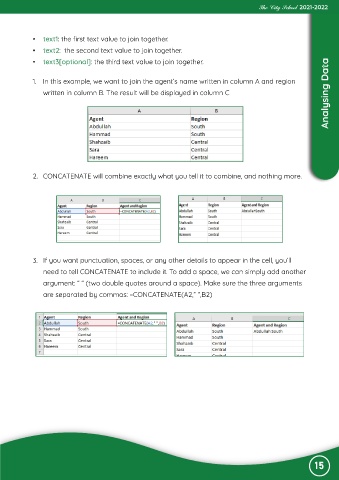
             1.  In this example, we want to join the agent’s name written in column A and region
                written in column B. The result will be displayed in column C


             2.  CONCATENATE will combine exactly what you tell it to combine, and nothing more.


             3.  If you want punctuation, spaces, or any other details to appear in the cell, you’ll
                need to tell CONCATENATE to include it. To add a space, we can simply add another

                argument: “ “ (two double quotes around a space). Make sure the three arguments
                are separated by commas: =CONCATENATE(A2,” “,B2)


                                                                                                                15

