


Page 40 - Computing E-Book Grade 3
P. 40
The City School  2021-2022


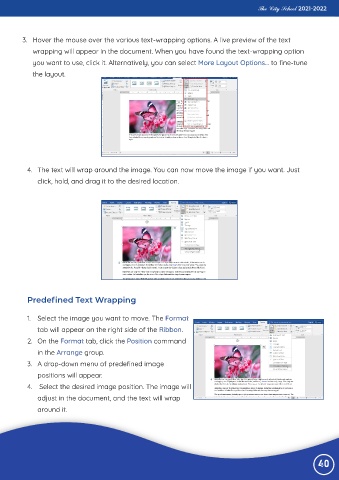
         3.  Hover the mouse over the various text-wrapping options. A live preview of the text
             wrapping will appear in the document. When you have found the text-wrapping option

             you want to use, click it. Alternatively, you can select More Layout Options... to fine-tune
             the layout.


           4.  The text will wrap around the image. You can now move the image if you want. Just
              click, hold, and drag it to the desired location.


           Predefined Text Wrapping


           1.  Select the image you want to move. The Format
              tab will appear on the right side of the Ribbon.

           2.  On the Format tab, click the Position command
              in the Arrange group.

           3.  A drop-down menu of predefined image
              positions will appear.

           4.   Select the desired image position. The image will
              adjust in the document, and the text will wrap

              around it.


                                                                                                                 40

