


Page 52 - Python Data Science Handbook
P. 52
If you followed the advice outlined in the preface and installed the Anaconda stack,
               you already have NumPy installed and ready to go. If you’re more the do-it-yourself
               type, you can go to the NumPy website and follow the installation instructions found
               there. Once you do, you can import NumPy and double-check the version:

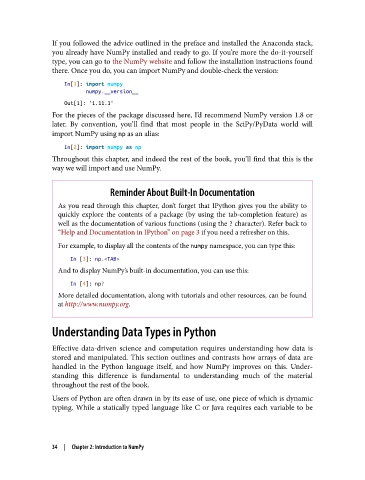
                   In[1]: import numpy
                          numpy.__version__
                   Out[1]: '1.11.1'
               For the pieces of the package discussed here, I’d recommend NumPy version 1.8 or
               later. By convention, you’ll find that most people in the SciPy/PyData world will
               import NumPy using np as an alias:

                   In[2]: import numpy as np
               Throughout this chapter, and indeed the rest of the book, you’ll find that this is the
               way we will import and use NumPy.


                               Reminder About Built-In Documentation

                 As you read through this chapter, don’t forget that IPython gives you the ability to
                 quickly explore the contents of a package (by using the tab-completion feature) as
                 well as the documentation of various functions (using the ? character). Refer back to
                 “Help and Documentation in IPython” on page 3 if you need a refresher on this.

                 For example, to display all the contents of the numpy namespace, you can type this:
                    In [3]: np.<TAB>
                 And to display NumPy’s built-in documentation, you can use this:
                    In [4]: np?
                 More detailed documentation, along with tutorials and other resources, can be found
                 at http://www.numpy.org.


               Understanding Data Types in Python

               Effective data-driven science and computation requires understanding how data is
               stored and manipulated. This section outlines and contrasts how arrays of data are
               handled in the Python language itself, and how NumPy improves on this. Under‐
               standing this difference is fundamental to understanding much of the material
               throughout the rest of the book.

               Users of Python are often drawn in by its ease of use, one piece of which is dynamic
               typing. While a statically typed language like C or Java requires each variable to be


               34  |  Chapter 2: Introduction to NumPy

