


Page 8 - MercNET User's Guide
P. 8
Orders
        Place orders for Parts and Accessories; check the status of all orders; view package tracking information; check
        Mercury inventory; inquire about open orders; view No Longer Available (NLA) product; and use the Vessel
        Config tool.

        Order Handling Procedures
        See the Mercury Policies and Procedures manual for further details regarding shipping standards and
        additional order handling procedures.
              • Standard orders which are placed, and credit approved by 12:00 pm at the assigned shipping
               warehouse should ship the same day. To “guarantee” same day shipping, the order should be placed as
               an emergency order (P&A Only).
              • Any Emergency Order which is placed, and credit approved by 2:00 pm at the assigned warehouse
               should be shipped the same day. Emergency orders are charged a $10.00 Emergency Order Fee, if
               ordered using MercNET.  The Ship Method in the Checkout Review section must be changed as well to
               ensure that you will receive emergency shipping.
              • Standard pickup orders received by 4:30 pm at the assigned warehouse will be ready by 12 noon the
               next business day. Pickups are 7:30 am to 4:30 pm warehouse time, Monday thru Friday. Pickup hours
               at Fond du Lac warehouse ONLY:  7:00 am to 9:00 am and 2:00 pm to 6:00 pm central time.
              • Requested ship date defaults to today’s date (date the order is placed) for the order header and line
               level. This date is your system date. Orders placed for shipments today must follow the U.S. order
               handling procedures outlined. If the order is placed after 2:00 pm warehouse time, the order will be
               scheduled to ship the next business day.

        Order P&A
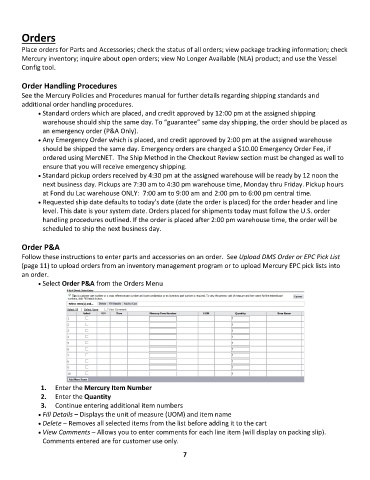
        Follow these instructions to enter parts and accessories on an order.  See Upload DMS Order or EPC Pick List
        (page 11) to upload orders from an inventory management program or to upload Mercury EPC pick lists into
        an order.
              • Select Order P&A from the Orders Menu


               1.  Enter the Mercury Item Number
               2.  Enter the Quantity
               3.  Continue entering additional item numbers
              • •   Fill Details – Displays the unit of measure (UOM) and item name
              • •   Delete – Removes all selected items from the list before adding it to the cart
              • •   View Comments – Allows you to enter comments for each line item (will display on packing slip).
               Comments entered are for customer use only.

                                                              7

