


Page 10 - Computing book 6
P. 10
Analysing Data                                                                       Class 6


               AND

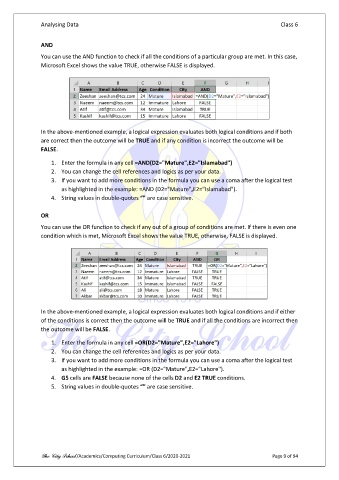
               You can use the AND function to check if all the conditions of a particular group are met. In this case,
               Microsoft Excel shows the value TRUE, otherwise FALSE is displayed.


               In the above-mentioned example, a logical expression evaluates both logical conditions and if both
               are correct then the outcome will be TRUE and if any condition is incorrect the outcome will be
               FALSE.

                   1.  Enter the formula in any cell =AND(D2="Mature",E2="Islamabad")
                   2.  You can change the cell references and logics as per your data.
                   3.  If you want to add more conditions in the formula you can use a coma after the logical test
                       as highlighted in the example: =AND (D2="Mature",E2="Islamabad").
                   4.  String values in double-quotes “” are case sensitive.

               OR
               You can use the OR function to check if any out of a group of conditions are met. If there is even one
               condition which is met, Microsoft Excel shows the value TRUE, otherwise, FALSE is displayed.


               In the above-mentioned example, a logical expression evaluates both logical conditions and if either
               of the conditions is correct then the outcome will be TRUE and if all the conditions are incorrect then
               the outcome will be FALSE.
                   1.  Enter the formula in any cell =OR(D2="Mature",E2="Lahore")
                   2.  You can change the cell references and logics as per your data.
                   3.  If you want to add more conditions in the formula you can use a coma after the logical test
                       as highlighted in the example: =OR (D2="Mature",E2="Lahore").
                   4.  G5 cells are FALSE because none of the cells D2 and E2 TRUE conditions.
                   5.  String values in double-quotes “” are case sensitive.


               The City School /Academics/Computing Curriculum/Class 6/2020-2021                 Page 9 of 94

