


Page 38 - Computing book 6
P. 38
Document Creation                                                                    Class 6


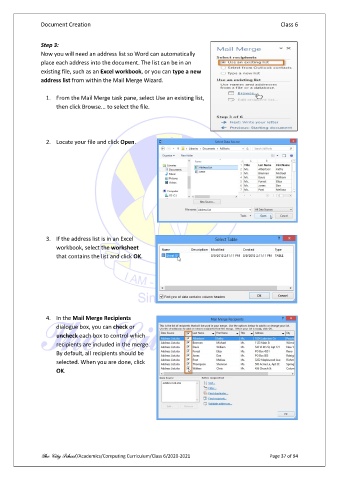
               Step 3:
               Now you will need an address list so Word can automatically
               place each address into the document. The list can be in an
               existing file, such as an Excel workbook, or you can type a new
               address list from within the Mail Merge Wizard.

                 1.  From the Mail Merge task pane, select Use an existing list,
                     then click Browse... to select the file.


                 2.  Locate your file and click Open.


                 3.  If the address list is in an Excel
                     workbook, select the worksheet
                     that contains the list and click OK.


                 4.  In the Mail Merge Recipients
                     dialogue box, you can check or
                     uncheck each box to control which
                     recipients are included in the merge.
                     By default, all recipients should be
                     selected. When you are done, click
                     OK.


               The City School /Academics/Computing Curriculum/Class 6/2020-2021                Page 37 of 94

