


Page 58 - Computing book 6
P. 58
Modular Designing                                                                    Class 6


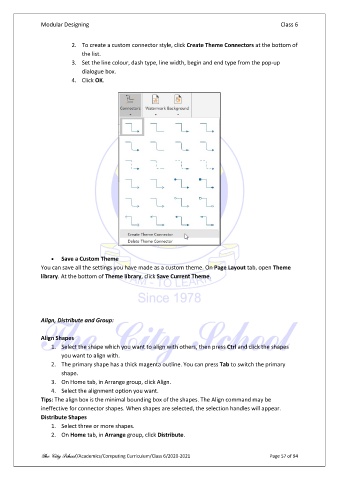
                          2.  To create a custom connector style, click Create Theme Connectors at the bottom of
                              the list.
                          3.  Set the line colour, dash type, line width, begin and end type from the pop-up
                              dialogue box.
                          4.  Click OK.


                   •  Save a Custom Theme
               You can save all the settings you have made as a custom theme. On Page Layout tab, open Theme
               library. At the bottom of Theme library, click Save Current Theme.


               Align, Distribute and Group:

               Align Shapes
                   1.  Select the shape which you want to align with others, then press Ctrl and click the shapes
                       you want to align with.
                   2.  The primary shape has a thick magenta outline. You can press Tab to switch the primary
                       shape.
                   3.  On Home tab, in Arrange group, click Align.
                   4.  Select the alignment option you want.
               Tips: The align box is the minimal bounding box of the shapes. The Align command may be
               ineffective for connector shapes. When shapes are selected, the selection handles will appear.
               Distribute Shapes
                   1.  Select three or more shapes.
                   2.  On Home tab, in Arrange group, click Distribute.


               The City School /Academics/Computing Curriculum/Class 6/2020-2021                Page 57 of 94

