


Page 59 - Computing book 6
P. 59
Modular Designing                                                                    Class 6


                   3.  Choose a distribution option.
                          o  For Vertical distribution, the boundaries are defined by the top and bottom shapes
                              in the selection.
                          o  For Horizontal distribution, the boundaries are defined by the leftmost and
                              rightmost shapes in the selection.
               Tips: The distribute box is the minimal bounding box of the shapes. The Distribute command may be
               ineffective for connector shapes. When shapes are selected, the selection handles will appear.
               Group and Ungroup
               To group shapes, select the shapes you want to group, go to Arrange group on Home tab, point to
               Group, and then click Group (or press Ctrl + Shift + G).
               To ungroup shapes, select the group, go to Arrange group on Home tab, point to Group, and then
               click Ungroup (or press Ctrl +Shift +U).

               Inserting Text in a Shape:

               On Home tab, click Text to choose Text Block Adjust Tool and then click the shape to select the text
               block. If the text is in a group, click to select the group, and then click to select the text block.

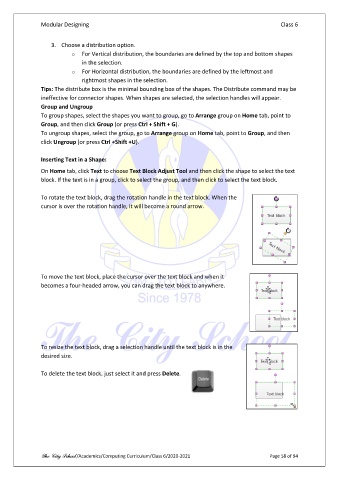
               To rotate the text block, drag the rotation handle in the text block. When the
               cursor is over the rotation handle, it will become a round arrow.


               To move the text block, place the cursor over the text block and when it
               becomes a four-headed arrow, you can drag the text block to anywhere.


               To resize the text block, drag a selection handle until the text block is in the
               desired size.

               To delete the text block, just select it and press Delete.


               The City School /Academics/Computing Curriculum/Class 6/2020-2021                Page 58 of 94

