


Page 56 - Computing book 6
P. 56
Modular Designing                                                                    Class 6


               Creating and Arranging diagrams:

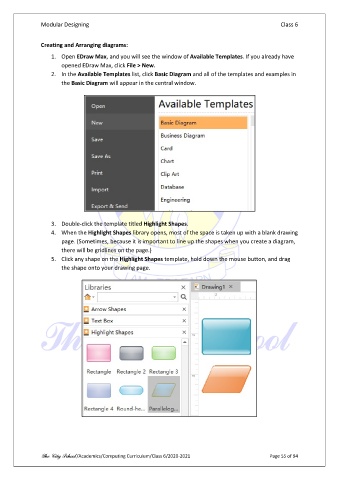
                   1.  Open EDraw Max, and you will see the window of Available Templates. If you already have
                       opened EDraw Max, click File > New.
                   2.  In the Available Templates list, click Basic Diagram and all of the templates and examples in
                       the Basic Diagram will appear in the central window.


                   3.  Double-click the template titled Highlight Shapes.
                   4.  When the Highlight Shapes library opens, most of the space is taken up with a blank drawing
                       page. (Sometimes, because it is important to line up the shapes when you create a diagram,
                       there will be gridlines on the page.)
                   5.  Click any shape on the Highlight Shapes template, hold down the mouse button, and drag
                       the shape onto your drawing page.


               The City School /Academics/Computing Curriculum/Class 6/2020-2021                Page 55 of 94

