


Page 60 - Computing book 6
P. 60
Modular Designing                                                                    Class 6


               Inserting a Background Page:

               Open the Backgrounds library if it's not already open. On Page Layout tab, click Background and
               then select Choose Background. (On Library panel, select General, then click Backgrounds, and drag
               a background shape onto your page.)
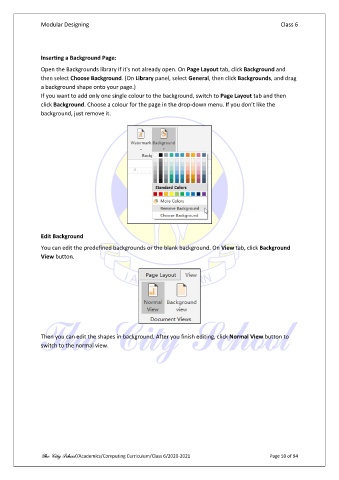
               If you want to add only one single colour to the background, switch to Page Layout tab and then
               click Background. Choose a colour for the page in the drop-down menu. If you don’t like the
               background, just remove it.


               Edit Background

               You can edit the predefined backgrounds or the blank background. On View tab, click Background
               View button.


               Then you can edit the shapes in background. After you finish editing, click Normal View button to
               switch to the normal view.


               The City School /Academics/Computing Curriculum/Class 6/2020-2021                Page 59 of 94

