


Page 61 - Computing book 6
P. 61
Modular Designing                                                                    Class 6


               Layers

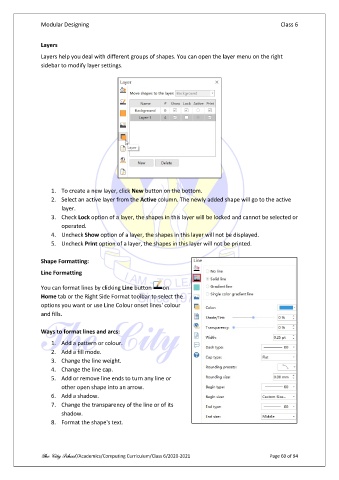
               Layers help you deal with different groups of shapes. You can open the layer menu on the right
               sidebar to modify layer settings.


                   1.  To create a new layer, click New button on the bottom.
                   2.  Select an active layer from the Active column. The newly added shape will go to the active
                       layer.
                   3.  Check Lock option of a layer, the shapes in this layer will be locked and cannot be selected or
                       operated.
                   4.  Uncheck Show option of a layer, the shapes in this layer will not be displayed.
                   5.  Uncheck Print option of a layer, the shapes in this layer will not be printed.

               Shape Formatting:
               Line Formatting

               You can format lines by clicking Line button   on
               Home tab or the Right Side Format toolbar to select the
               options you want or use Line Colour onset lines' colour
               and fills.

               Ways to format lines and arcs:

                   1.  Add a pattern or colour.
                   2.  Add a fill mode.
                   3.  Change the line weight.
                   4.  Change the line cap.
                   5.  Add or remove line ends to turn any line or
                       other open shape into an arrow.
                   6.  Add a shadow.
                   7.  Change the transparency of the line or of its
                       shadow.
                   8.  Format the shape's text.


               The City School /Academics/Computing Curriculum/Class 6/2020-2021                Page 60 of 94

