


Page 30 - Computing Book 4
P. 30
Let’s Present                                                                        Class 4


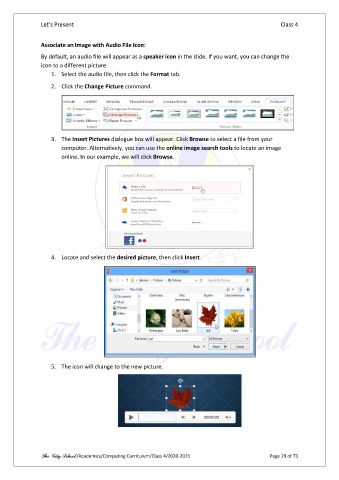
               Associate an Image with Audio File Icon:

               By default, an audio file will appear as a speaker icon in the slide. If you want, you can change the
               icon to a different picture.
                   1.  Select the audio file, then click the Format tab.
                   2.  Click the Change Picture command.


                   3.  The Insert Pictures dialogue box will appear. Click Browse to select a file from your
                       computer. Alternatively, you can use the online image search tools to locate an image
                       online. In our example, we will click Browse.


                   4.  Locate and select the desired picture, then click Insert.


                   5.  The icon will change to the new picture.


               The City School /Academics/Computing Curriculum/Class 4/2020-2021                Page 29 of 73

