


Page 27 - Computing Book 4
P. 27
Let’s Present                                                                        Class 4


               Slide Transitions:

               A transition can be as simple as fading to the next slide or as flashy as an eye-catching effect.
               PowerPoint makes it easy to apply transitions to some or all of your slides, giving your presentation
               an exciting and attractive look.

               Add Transitions between Slides:
               Here is the procedure to add transitions between slides:

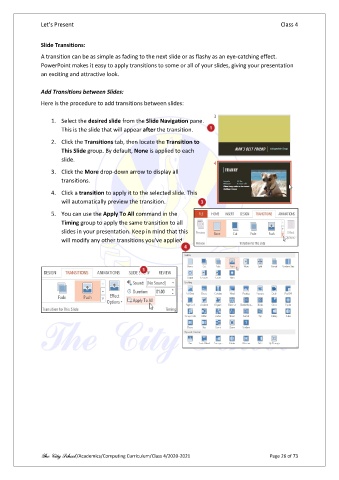
                   1.  Select the desired slide from the Slide Navigation pane.
                       This is the slide that will appear after the transition.
                   2.  Click the Transitions tab, then locate the Transition to
                       This Slide group. By default, None is applied to each
                       slide.

                   3.  Click the More drop-down arrow to display all
                       transitions.

                   4.  Click a transition to apply it to the selected slide. This
                       will automatically preview the transition.
                   5.  You can use the Apply To All command in the
                       Timing group to apply the same transition to all
                       slides in your presentation. Keep in mind that this
                       will modify any other transitions you've applied.


               The City School /Academics/Computing Curriculum/Class 4/2020-2021                Page 26 of 73

