


Page 32 - Computing Book 4
P. 32
Let’s Present                                                                        Class 4


               Hyperlinks:

               Whenever you use the Internet, you use hyperlinks to navigate from one webpage to another. If you
               want to include a web address or email address in your PowerPoint presentation, you can choose to
               format it as a hyperlink so a person can easily click it. It is also possible to link to files and other slides
               within a presentation. It is easy to do all of this using two tools: hyperlinks and action buttons.

               Hyperlinks have two basic parts: the address of the webpage, email address, or other location they
               are linking to, and the display text (which can also be a picture or shape).


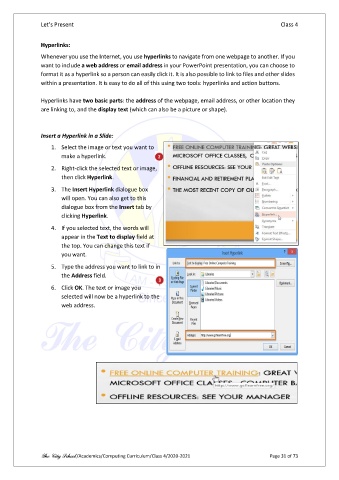
               Insert a Hyperlink in a Slide:

                   1.  Select the image or text you want to
                       make a hyperlink.
                   2.  Right-click the selected text or image,
                       then click Hyperlink.

                   3.  The Insert Hyperlink dialogue box
                       will open. You can also get to this
                       dialogue box from the Insert tab by
                       clicking Hyperlink.
                   4.  If you selected text, the words will
                       appear in the Text to display field at
                       the top. You can change this text if
                       you want.

                   5.  Type the address you want to link to in
                       the Address field.
                   6.  Click OK. The text or image you
                       selected will now be a hyperlink to the
                       web address.


               The City School /Academics/Computing Curriculum/Class 4/2020-2021                Page 31 of 73

