


Page 26 - Computing Book 5
P. 26
Working with Media                                                                   Class 5


               Fine-tuning the Video Effects settings

               Each filter, overlay and utility effect you add to the timeline can be edited from the Video tab.
               Double-click on a visual effect on the timeline or on a video clip if you want to adjust its settings. In
               case you added an effect to a clip a Video tab will pop up on the screen, that enables you to increase
               or reduce an effect’s intensity via the Alpha slider.
               You can remove an effect from a video by unchecking the tick box next to an effect, or you can turn
               off all the effects you added to a video clip by ensuring that the Video Effects checkbox is not
               checked.

               Adding Elements to Videos in Filmora9


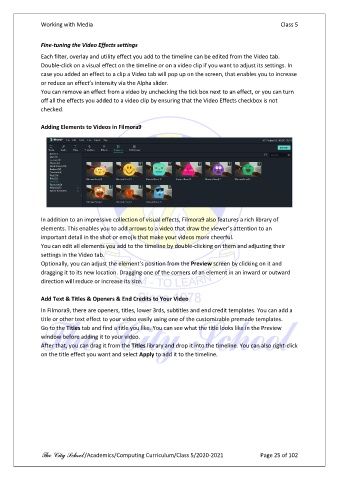
               In addition to an impressive collection of visual effects, Filmora9 also features a rich library of
               elements. This enables you to add arrows to a video that draw the viewer’s attention to an
               important detail in the shot or emojis that make your videos more cheerful.
               You can edit all elements you add to the timeline by double-clicking on them and adjusting their
               settings in the Video tab.
               Optionally, you can adjust the element’s position from the Preview screen by clicking on it and
               dragging it to its new location. Dragging one of the corners of an element in an inward or outward
               direction will reduce or increase its size.

               Add Text & Titles & Openers & End Credits to Your Video
               In Filmora9, there are openers, titles, lower 3rds, subtitles and end credit templates. You can add a
               title or other text effect to your video easily using one of the customizable premade templates.
               Go to the Titles tab and find a title you like. You can see what the title looks like in the Preview
               window before adding it to your video.
               After that, you can drag it from the Titles library and drop it into the timeline. You can also right-click
               on the title effect you want and select Apply to add it to the timeline.


               The City School /Academics/Computing Curriculum/Class 5/2020-2021            Page 25 of 102

