


Page 31 - Computing Book 5
P. 31
Working with Media                                                                   Class 5


               Remove a Title

               To remove a title effect, just select it in the timeline and hit the Delete key on your keyboard.

               You can also click the delete icon    in the toolbar, or right-click on the title and choose Delete.

               Export your video to your computer
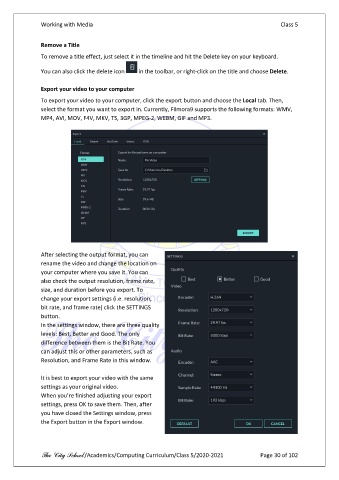
               To export your video to your computer, click the export button and choose the Local tab. Then,
               select the format you want to export in. Currently, Filmora9 supports the following formats: WMV,
               MP4, AVI, MOV, F4V, MKV, TS, 3GP, MPEG-2, WEBM, GIF and MP3.


               After selecting the output format, you can
               rename the video and change the location on
               your computer where you save it. You can
               also check the output resolution, frame rate,
               size, and duration before you export. To
               change your export settings (i.e. resolution,
               bit rate, and frame rate) click the SETTINGS
               button.
               In the settings window, there are three quality
               levels: Best, Better and Good. The only
               difference between them is the Bit Rate. You
               can adjust this or other parameters, such as
               Resolution, and Frame Rate in this window.

               It is best to export your video with the same
               settings as your original video.
               When you’re finished adjusting your export
               settings, press OK to save them. Then, after
               you have closed the Settings window, press
               the Export button in the Export window.


               The City School /Academics/Computing Curriculum/Class 5/2020-2021            Page 30 of 102

