


Page 29 - Computing Book 5
P. 29
Working with Media                                                                   Class 5


               To Change the Style (layout, font, Size, Colour, Etc.) of Text Effects

               In the Style tab, you can change the font, input your words, and adjust other settings.
               Filmora9 can recognize any font installed on your computer, including new fonts you might have
               downloaded from websites like Google Font. If you install a new font while Filmora9 is open, you will
               need to close and re-start Filmora9 to see it.
               Besides choosing a font in this menu, you can make titles bold, italicize them, add borders or
               shadows, and adjust the placement and alignment of your text.
               To change the orientation of the text, click the T icon and then the text layout will be changed from
               horizontal to vertical. You can type vertically when adding text and titles to your videos.
               To rotate a title, go to Transform and then drag the Rotate slider or enter a numerical value to
               rotate the title to any angle.
               To resize a text box, drag the circles around or change the Scale settings under Transform.
               To change the title position, you can drag the text box in the Preview window to any position, or
               enter values for the X and Y axes in the Transform section.

               To Apply Text Animations
               There are over 80 animation pre-sets available in Filmora9. Switch to the Animation tab in the Text
               Editing panel, double click on the animation you want to try, and watch the Preview window to see
               what it looks like. Click OK to apply the animation to your title.

               Advanced Title Editing

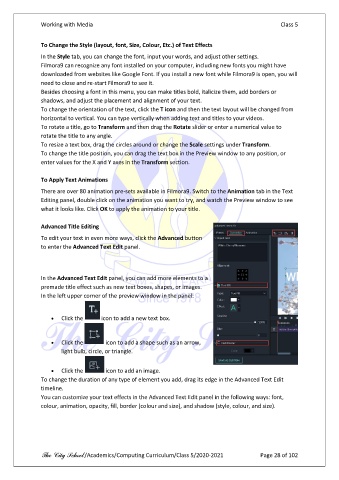
               To edit your text in even more ways, click the Advanced button
               to enter the Advanced Text Edit panel.


               In the Advanced Text Edit panel, you can add more elements to a
               premade title effect such as new text boxes, shapes, or images.
               In the left upper corner of the preview window in the panel:


                   •  Click the      icon to add a new text box.


                   •  Click the        icon to add a shape such as an arrow,
                       light bulb, circle, or triangle.


                   •  Click the        icon to add an image.
               To change the duration of any type of element you add, drag its edge in the Advanced Text Edit
               timeline.
               You can customize your text effects in the Advanced Text Edit panel in the following ways: font,
               colour, animation, opacity, fill, border (colour and size), and shadow (style, colour, and size).


               The City School /Academics/Computing Curriculum/Class 5/2020-2021            Page 28 of 102

